Teachers with access to My Classrooms may be able to open the Proctor Dashboard from the My Classes page depending on how the test was assigned.
To access the Proctor Dashboard:
- Log in to ADAM.
- If not already selected, select My Classes.
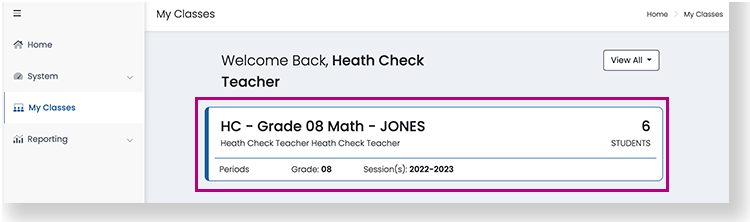
- Select the class that will be taking the test. ADAM displays completed and upcoming tests for the selected class.
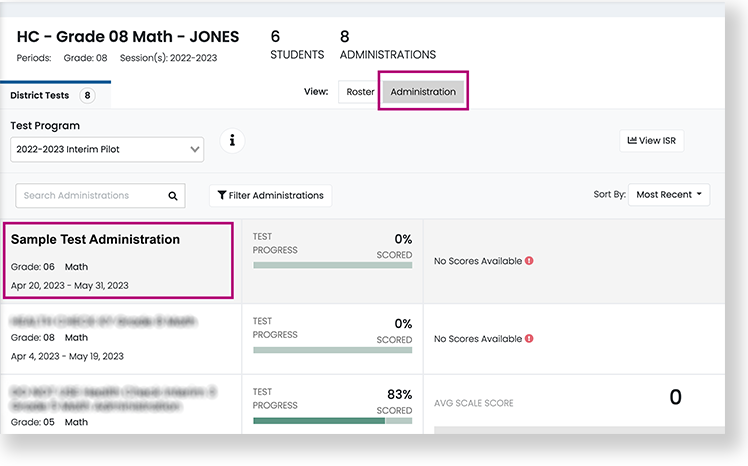
- Select Administration, and then select the test administration that you want to proctor from the list below. After the test administration is over, results will typically appear here.
- Select the Proctor icon on the top right to open the Proctor Dashboard for the selected class. The Proctor Dashboard opens.

Tiny Link: https://support.assessment.pearson.com/x/aAA-CQ