This page pertains to ADAM tests being delivered via the TestNav Secure Browser. 

  • If your test is delivered through ADAM but not using the locked down secure browser, see Log in to a Test using ADAM.
  • If students are testing in TestNav, see Sign in to TestNav.
  • If you are not sure which applies, ask a test coordinator.

To access an assigned test via the TestNav app, students need to:

  1. Close out of any open applications on their testing device.
  2. Listen to directions from the test proctor on which option to choose on the TestNav selector page, if applicable (Step 4).

  3. Launch the TestNav app.
    TestNav app
  4. Select the selects appropriate tile as directed in Step 1 (for example, Student Portal or their state) on the TestNav home page. (Note: If the tile was selected previously on the device, the student will skip to the next step.)

    Note: If the student selects a different link, see What to Do if the Student Picks the Wrong Tile.

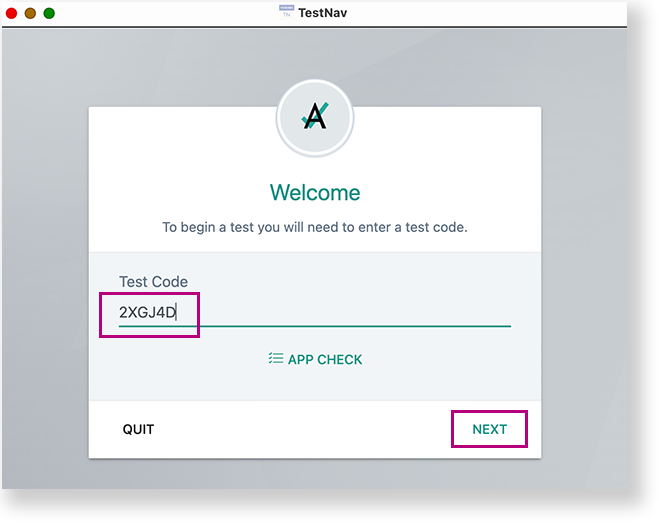
  5. Enter the Test Code, and then select Next.
    Welcome screen showing where to enter test code
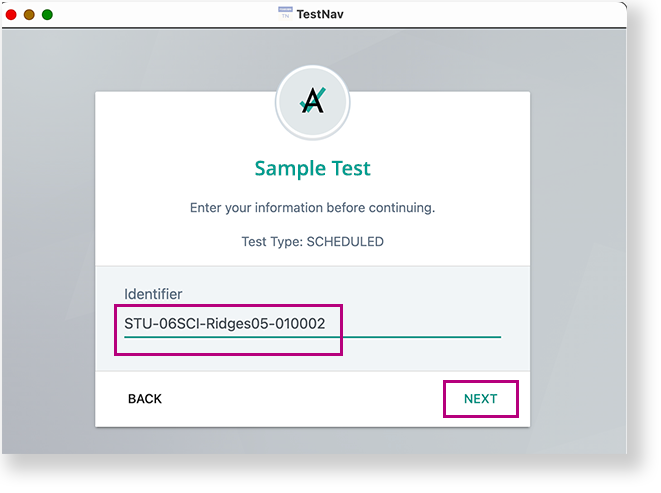
  6. Enter the student ID in the Identifier* field and select Next. (*The fields required for authentication may vary.)
    Screen highlighting where to enter identifier
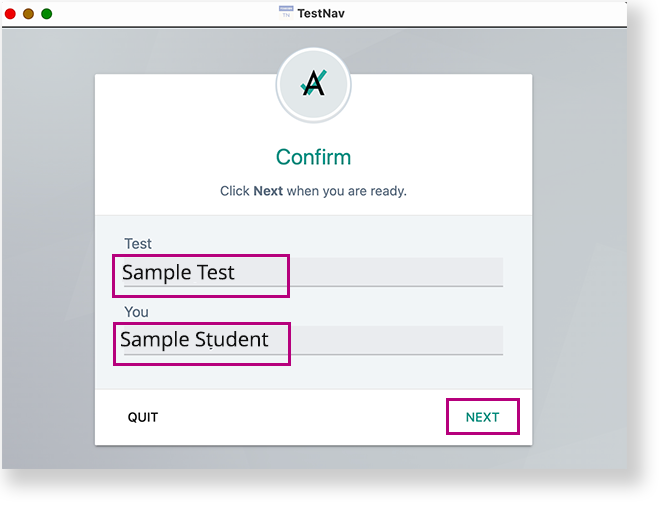
  7. Confirm the Test and your name and select Next.
    Screenshot of confirmation page

What to Do if the Student Selects the Wrong Organization Tile

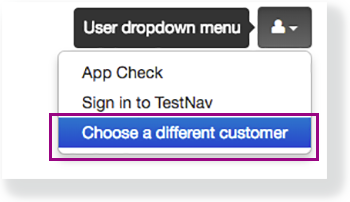
If the student credentials entered match what is on the test card and were entered correctly but the students can't log in, the most likely cause is that the student clicked another tile on the TestNav selection page. In order to switch to the Student Portal, select the menu in the upper-right, and select Choose a different customer.

Icon on top right of page with menu open and Choose a Different Customer outlined


Tiny Link: https://support.assessment.pearson.com/x/UAKiBg