Initiate Student Testing
Once you have the Proctor Dashboard open, provide students their credentials. Print cards, also known as 'test tickets,' are typically provided by the school test coordinator, but may also be printed from the Proctor Dashboard. For summative testing, be sure to follow the steps in any scripts provided for the test administration.
See also: Options for Accessing the Proctor Dashboard
Where Do Students Start?
How students access their test depends on which testing platform they use, which ADAM environment (URL) applies, if it is a locked down kiosk mode, and whether or not they have accounts to sign into ADAM. Ask your test coordinator or Pearson program team if you are unsure which applies for your students.
- If students are using TestNav, see: Log in Using TestNav Secure Browser
- In some cases, students launch their test via My Classes in ADAM. See below for details.
- In some cases, student start from https://adamexam.com/tester/ or https://ltr.adamexam.com/tester/ (only one will work – this depends on where your site is located).
- For secure, kiosk-mode tests, students start from the ADAM app installed on their testing device. See below for details.
What if there is no Test Code on the Student Test Tickets (Print Cards)?
If the proctor group was not created ahead of time with students added, the test code won't appear on the print card – you can find it on the Proctor Dashboard. Write down and post on the wall where students can see it.
CLASSIC USER INTERFACE FUNCTIONALITY
Student Test Access Via My Classes
Students who are set up to log into ADAM and are assigned to an administration can launch a test from My Classes. When students start a test, the proctor group is created (if the teacher has not already created the group).
If the student is already assigned to a proctor group, the student does not need an identifier or test code; they will simply click Start Test, acknowledge a confirmation message, and the test will load.


UPDATED USER INTERFACE FUNCTIONALITY
NOTE: This section details how students access a test within the updated user interface.
Student Test Access Via My Classes
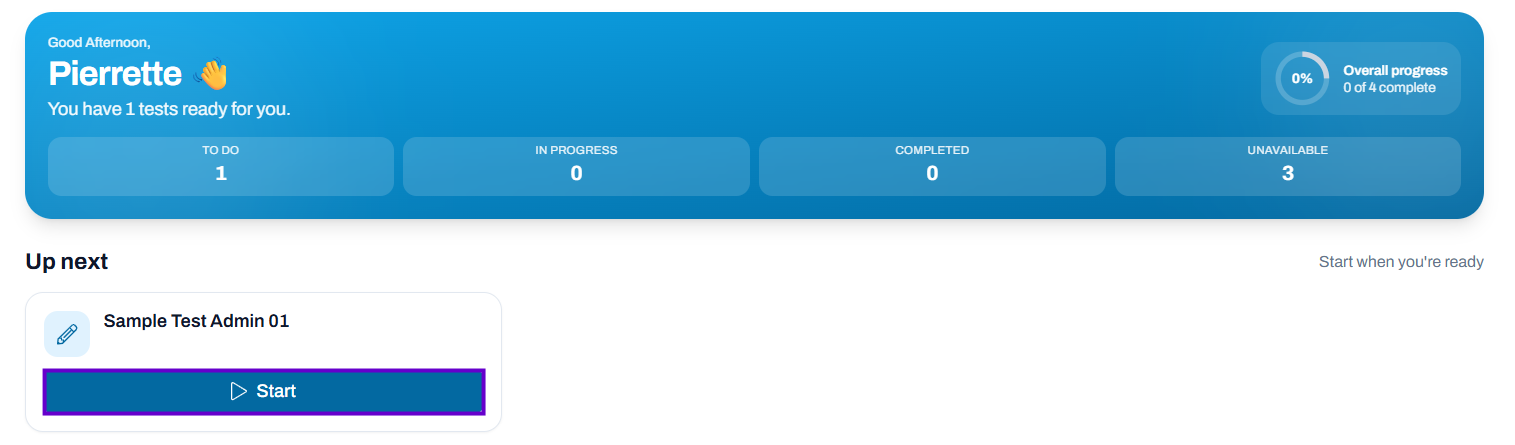
Students who are set up to log into ADAM and are assigned to an administration can launch a test from their student dashboard. When students start a test, the proctor group is created (if the teacher has not already created the group).
If the student is already assigned to a proctor group, the student does not need an identifier or test code; they will simply click Start, acknowledge a confirmation message, and the test will load.
Updated User Interface:
Student Accesses Test via App on Testing Device
- Select the ADAM icon on the testing device.

- Enter the Test Code provided by the proctor, then select Next.
- Enter the Identifier provided by the proctor, then select Next.
Confirm that the Test and your identifier (under You) are correct, and then select Next. If either of these are incorrect or if you are not sure, alert the proctor before continuing.
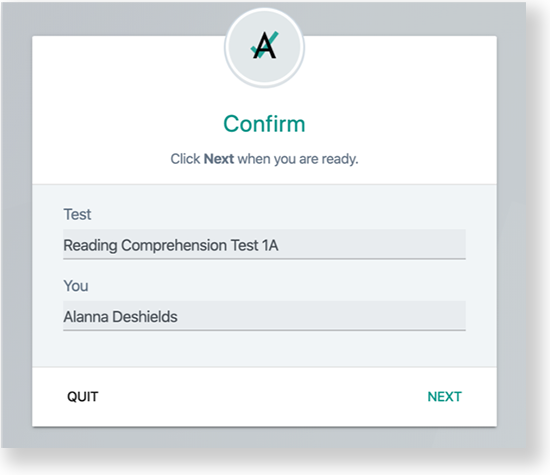
- Select Start to begin the test.
Tiny Link: https://support.assessment.pearson.com/x/fwE-CQ