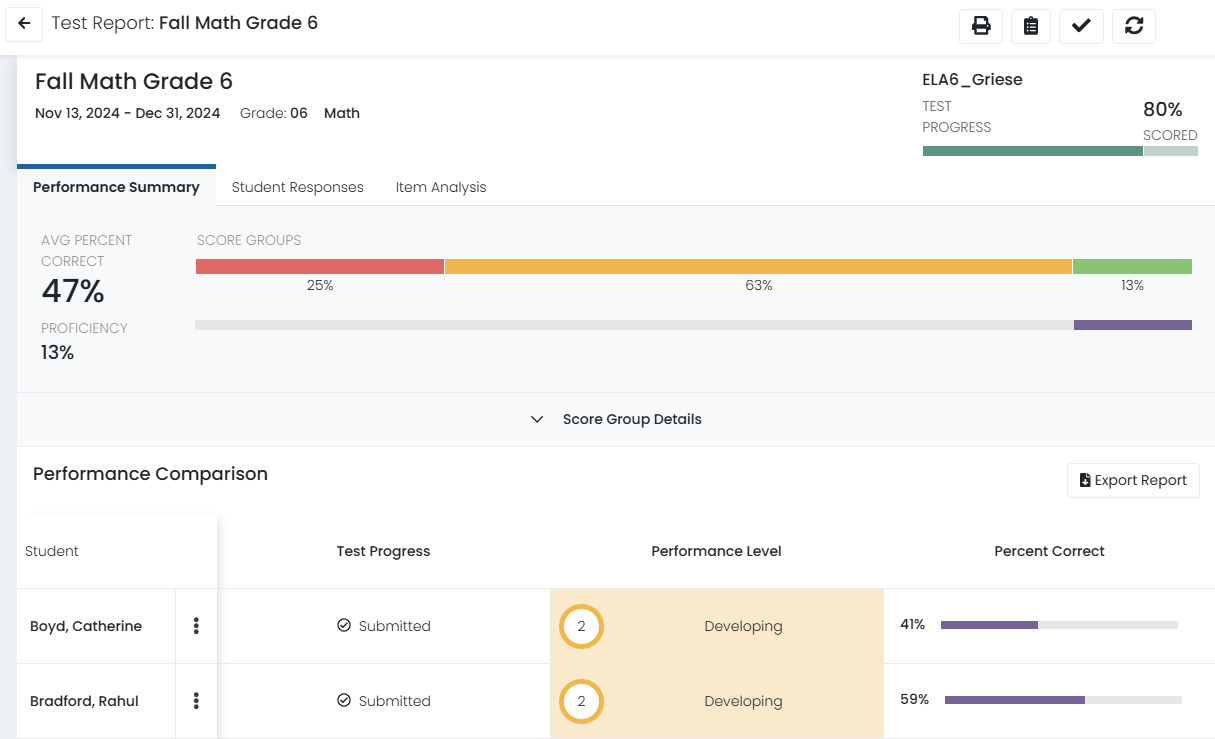
From the Class Overview, teachers can access a detailed view for each test taken by their students.
To access and view the Performance Summary for a single test:
- Select My Classes
- Select on the header of any available test.
- On the Performance Summary you can:
- Navigate to the Item Analysis, or Student Responses tabs, as available.
- Hover over a segment of the Score Groups bar (if available) to view the number of students and cut scores.
- Select Score Group Details to view score group distribution, if applicable.
- Select a student name to go to their Individual Student Report (ISR) or Student Results, if available.
- Export the report
- Use the icons in the top right to:
- Access Print Cards (AKA test tickets) for students who have not yet tested.
- Access the Proctor Dashboard.
- Go to the Apply Scores area.
- Refresh the screen to see new results for submitted tests.