Test Publishing
A test in ADAM is a package that holds one or more test forms (see Author a New Form). While many tests contain only one form, a test might contain more than one form to support accommodation needs (for example, English and Spanish versions).
Workflow: Create Form(s)→ Create New Test → Publish Test → Create New Administration
Pay attention to the names you give to each of these pieces, as names might contain subtle differences.
Prerequisites:
- Confirm you are signed in as a role with permissions to add tests and publish tests.
- Form(s) are available.
- You have completed the steps in Tests: Create a Test
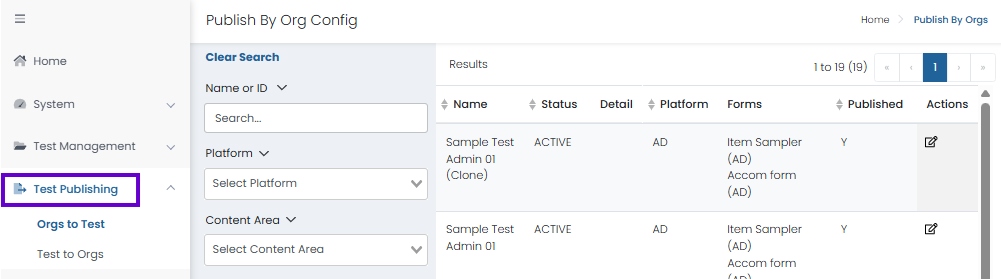
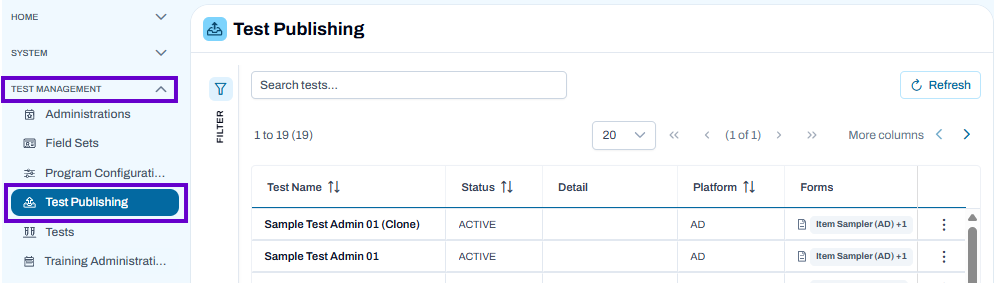
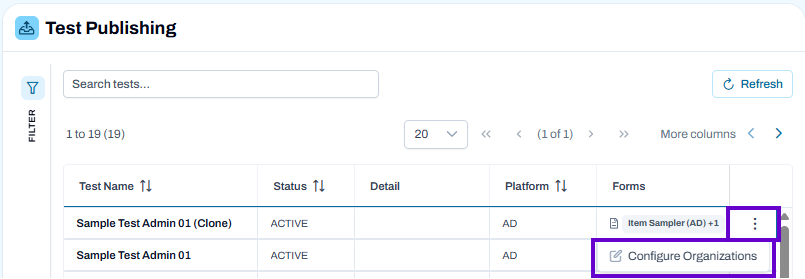
Use the Test Publishing page to view and manage tests that are available for publication. From this page, you can search for specific tests, review publication status, and access publishing options for individual tests.
Classic User Interface:
Updated User Interface:
Publish a Test:
Locate the Test
- Use the Search tests field to find a specific test by name.
- Select the Filter option to narrow the list based on available criteria.
Review Test Information
- Verify the test name, status, platform, and associated forms.
- Use the column headers to sort the list and quickly locate the desired test.
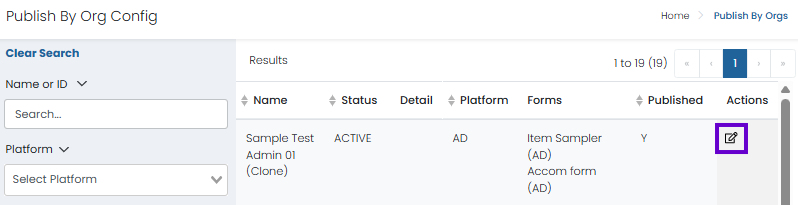
Open Publishing Options
- Select the More Actions menu (⋮) next to the test you want to publish.
- Choose the appropriate publishing option from the available menu selections.
Configure Publication Settings
- Specify which organizations should have access to the test.
- Review any publication requirements or restrictions before saving.
Save and Publish
- Confirm your selections and complete the publishing process.
- Once published, eligible organizations can access the test according to the configured settings.
Configure Organizations
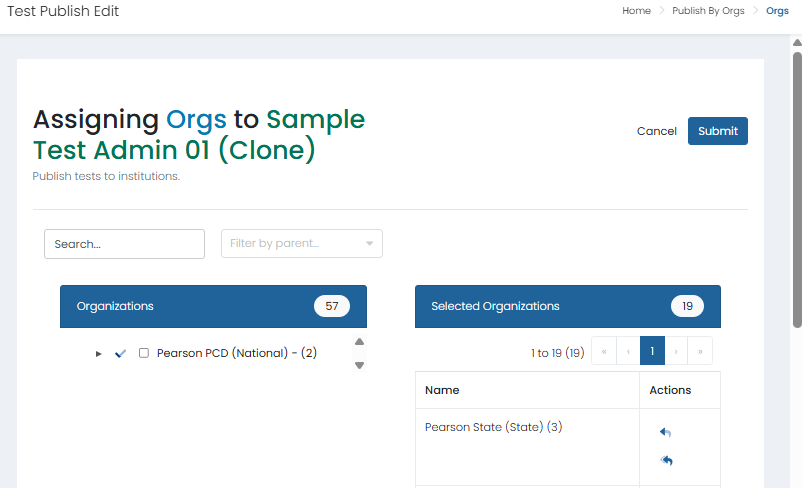
Use the Configure Organizations page to control which organizations have access to a published test. Organizations must be assigned to a test before they can create administrations or deliver the assessment.
Classic User Interface:
Updated User Interface:
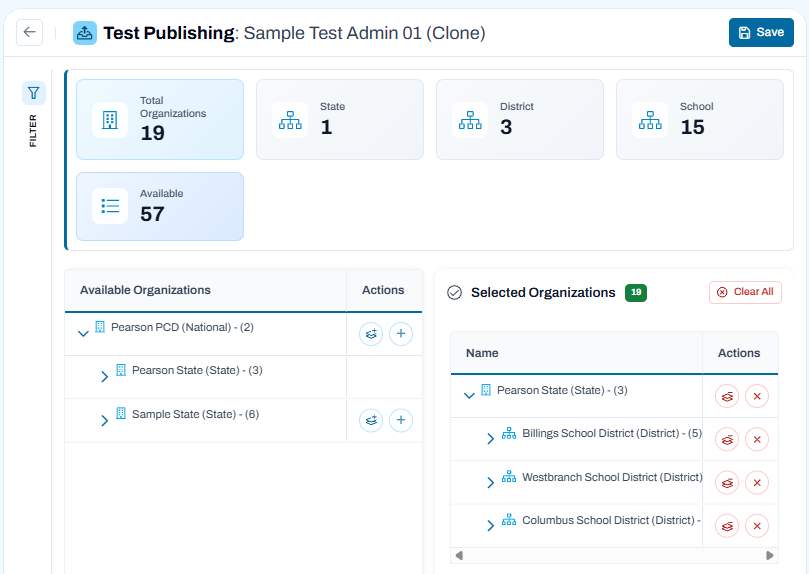
Summary Cards
- Review the organization counts displayed at the top of the page, including:
- Total Organizations currently selected
- State organizations
- District organizations
- School organizations
- Available organizations that can still be assigned
Available Organizations
- The left panel displays organizations that can be added to the test.
- Expand organizational hierarchies using the arrow icons to view child organizations, such as districts and schools.
- Use the action buttons to add individual organizations or entire organizational branches.
Selected Organizations
- The right panel displays organizations that currently have access to the test.
- Expand entries to review assigned districts and schools.
- Use the action buttons to remove individual organizations or organizational groups.
- Select Clear All to remove all assigned organizations.
To Add Organizations
- Locate the organization in the Available Organizations panel.
- Expand state, district, or school levels as needed.
- Select the Add (+) button next to the desired organization.
- The organization moves to the Selected Organizations panel.
- Repeat until all required organizations have been assigned.
To Remove Organizations
- Locate the organization in the Selected Organizations panel.
- Select the Remove (X) button next to the organization.
- The organization is removed from the test's access list.
- To remove all assignments, select Clear All.
Save Your Changes
- Review the Selected Organizations count and assigned organizations.
- Verify that all required states, districts, and schools have been included.
- Select Save to apply the changes.
Best Practices
- Assign access at the highest organizational level possible when multiple child organizations require the test.
- Review selected organizations carefully before saving to prevent unintended access.
- Verify organization counts after making changes to ensure the correct testing population is covered.
- Remove organizations that no longer require access to keep publishing assignments accurate and current.
Additional Features
Search
- Quickly locate tests by entering all or part of a test name.
Filters
- Refine the test list using available filtering options.
Refresh
- Select Refresh to display the most current test information and publication status.
Pagination
- Navigate between pages when managing a large number of tests.
See also: Two Options for Publishing a District Level Test; Tests: Create a Test
Tiny Link: