Users with rights to Edit Proctor Group Status can change the status of a proctor group from active to inactive. When the proctor group is set to inactive, when a student tries to use that test code a Proctor Group Inactive warning will be shown on screen.
Activate or Deactivate a Proctor Group
Go to Test Management > Administrations > Proctor Groups (View) to locate the toggle switch to deactivate a proctor group.
See also: View Students in an Administration or Proctor Group
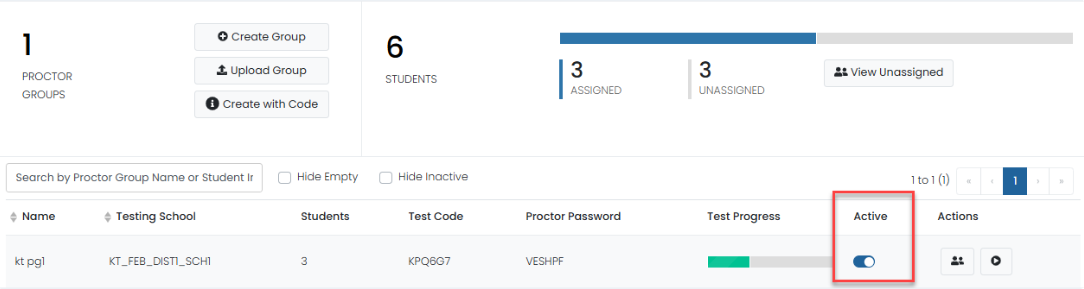
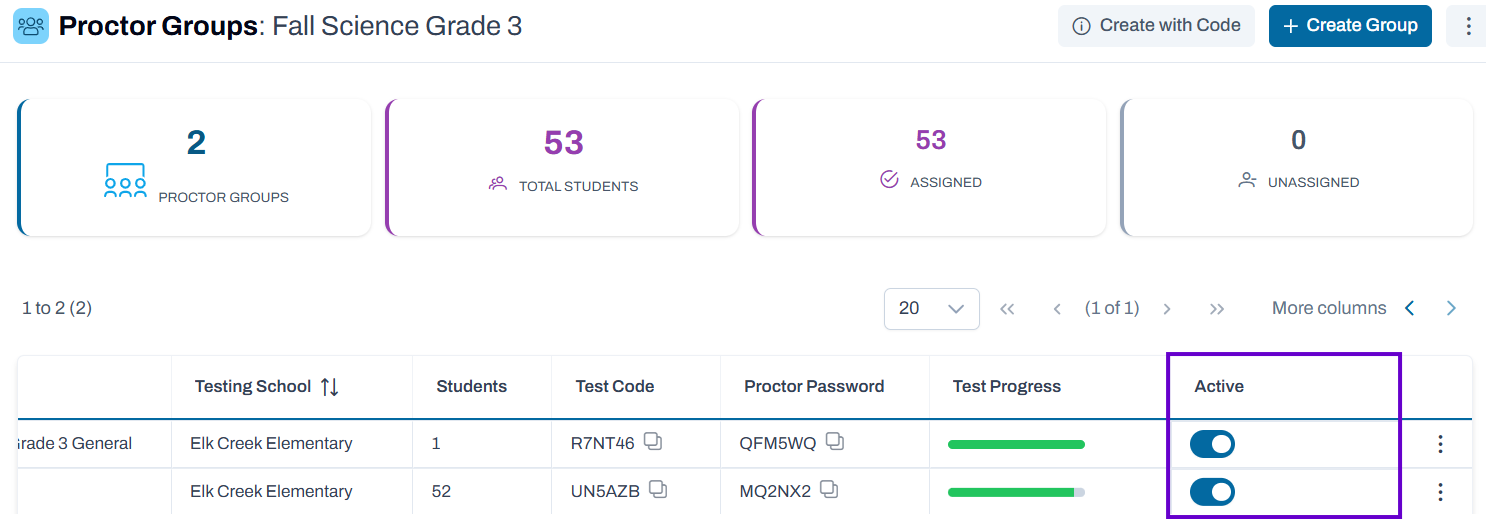
Use the Active toggle to control whether a proctor group is available for testing activities.
Classic User Interface:
Updated User Interface:
Change a Group's Status
- Locate the proctor group in the list.
- Find the Active column.
- Select the toggle switch to change the group's status:
- On – The proctor group is active and available for use.
- Off – The proctor group is inactive and hidden when the Hide Inactive Groups filter is applied.
When to Deactivate a Group
- A testing session has been completed and is no longer needed.
- The group was created in error.
- The group should be temporarily removed from active testing workflows.
When to Activate a Group
- Testing is scheduled to begin.
- Additional students need to be assigned to the group.
- An inactive group needs to be used again.
Helpful Tips
- Review the Students column before deactivating a group to confirm whether students are assigned.
- Use the Hide Inactive Groups filter to simplify the proctor group list and focus on active testing groups.
- Deactivating a proctor group does not remove it from the administration; it simply changes its availability status.
Deactivated Proctor Groups
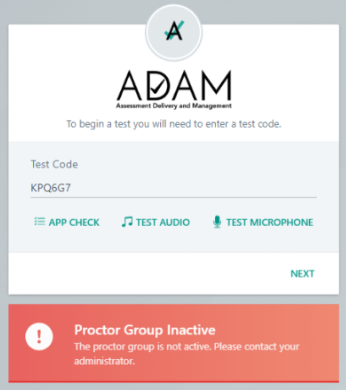
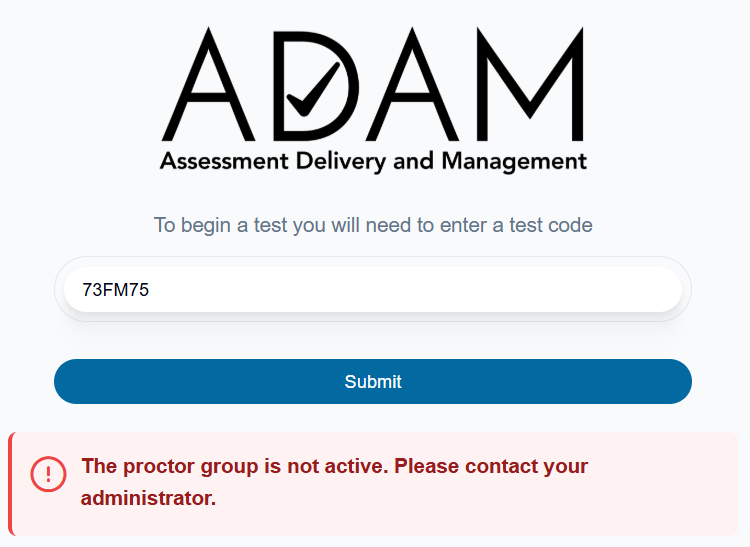
When a proctor group is marked as inactive, its test code can no longer be used to start a testing session.
In the example shown, a user enters a valid test code and selects Submit, but ADAM displays the message:
"The proctor group is not active. Please contact your administrator."
This message indicates that the entered test code belongs to a proctor group that has been deactivated. Students and proctors cannot access the testing session until the proctor group is reactivated.
Important
- Deactivating a proctor group does not delete the group or its students.
- Deactivated groups remain in ADAM and can be reactivated at any time.
- Any test code associated with an inactive proctor group will display this error message when used.
Classic User Interface:
Updated User Interface:
Tiny Link: https://support.assessment.pearson.com/x/zgE4Cw