When moving students from one proctor group to another, you must edit the destination proctor group.
NOTE: When you add the student to move, they are automatically removed from their original group. You can create a new proctor group to assign students if needed. The new proctor group you create will have a unique test code and proctor password.
You might want to create an additional proctor group when:
- A class is divided into multiple proctor groups, each taking the assessment in several locations within the school or offsite.
- The test session will be proctored remotely using Remote Proctoring. (not available for all programs).
- Students with the Extra Time accommodation are taking the assessment in a separate room.
- Students taking a make-up session are being proctored together at a later date.
Move Student to a New Proctor Group
- If you haven't already created the new group, select Test Management > Administrations. If you have already created, edit the group and skip to step 6.
- In the appropriate admin card, select View under Proctor Groups.
- See also: View Students in an Administration or Proctor Group
- Click Create Group.
- See also: Manually Create a Proctor Group
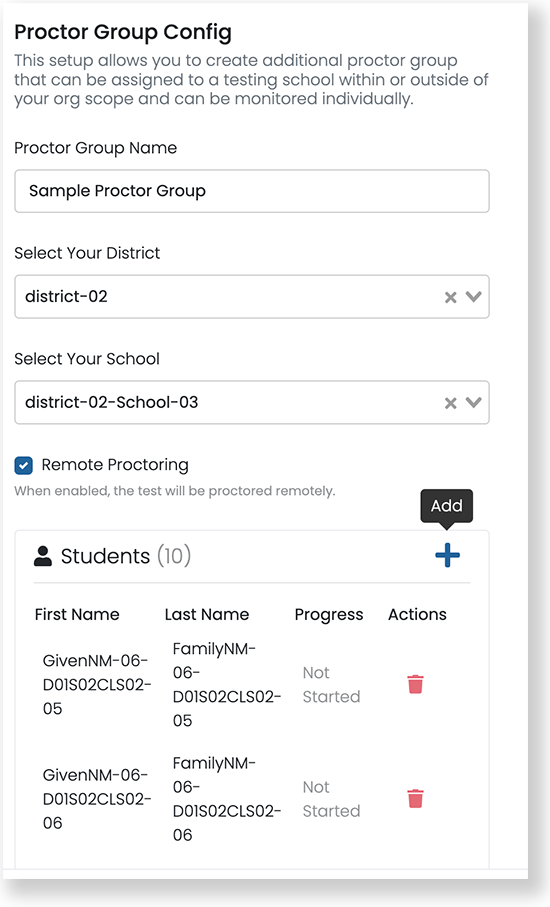
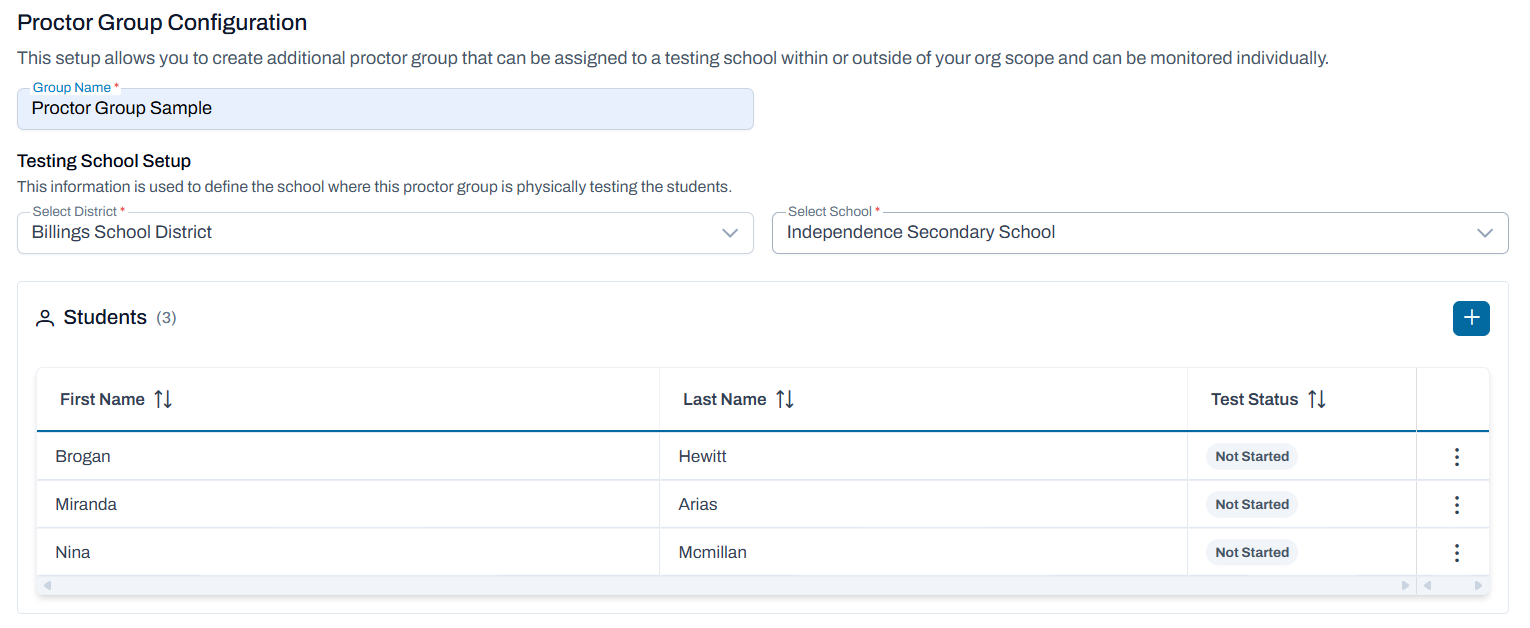
- On the Proctor Group Configuration page, enter the Group Name, and select the district and school.
- TestNav Only: If available for your program, optionally select the Remote Proctoring checkbox to make the session a remote test session.
- Select the plus symbol to add students. In the Add Sessions popup:
- Search for students by name and/or accommodation.
- Select the plus symbol to add a single student or select Add # Students to add all the students on the current page.
- Click Close when done.
- Select Submit to save the proctor group. The proctor group appears with the original list of proctor groups. This proctor group has a unique test code and proctor password.
Click to enlarge.
Classic User Interface:
Updated User Interface:
Tiny Link: https://support.assessment.pearson.com/x/SYApBw